

What's new
- Touch ID, Windows Hello and password unlock: unlock your vaults with Touch ID on a Mac, Windows Hello on Windows, or your password.
- Restricted mode, on by default: Valt0 asks you before an app reads a vault.
-
Unrestricted mode, for when you'd rather not be asked, switched in the
Valt0 app or with
valt0 config permissions.
Approve which apps can read your secrets
From Valt0 v1.2, you approve which apps can read your secrets. When an app tries to open a vault, Valt0 asks you first, and you allow it once, allow it for a few hours, or decline. It's on by default, and you can turn it off.
An .env file can be read by anything running as you: your app, a build script, a
dependency's install hook, an AI coding agent with a shell. Moving secrets into a
Valt0 vault takes them off the disk in plain text, but it
leaves one question open: which programs should be able to ask for them? 1.2 lets you answer
that app by app.
The "Allow connection?" prompt
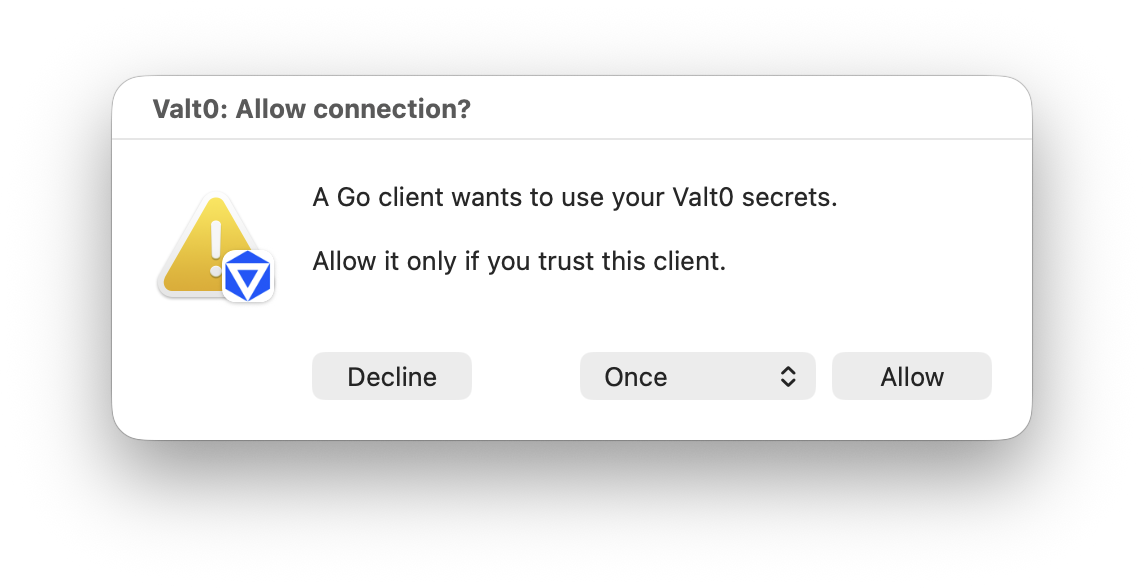
Valt0 v1.2 runs in restricted mode by default. When an app opens a vault, Valt0 shows a window titled Valt0: Allow connection? It says which kind of client is asking, such as Go or Python, and gives you two choices: Decline, or Allow. After you allow, Touch ID, Windows Hello or your password confirms it's you.
Allow an app once, or for a few hours
The menu next to Allow decides how long your answer lasts.
- Once covers the app while it runs. Restart it and Valt0 asks again.
- For 1, 2, 4 or 8 hours covers that app every time it starts, until the time is up. This is the one to pick for a dev server that restarts on every save, or a command you run fifty times an afternoon.
Decline blocks the running app, even if you'd allowed it for a few hours earlier. Close the window without answering and nothing is remembered. The menu starts on Once every time, so a long approval is always a choice you made.
Why ask: dependencies, scripts and AI agents
We'd keep restricted mode on any machine where you run code you didn't write: a fresh
npm install, a script from a README, an AI agent with a shell. If one of them
asks Valt0 for a secret, you see the prompt, and you can decline it. This covers what is read
through Valt0: it doesn't stop a program from reading other files on your machine, so keep
your secrets in the vault rather than in .env. For agents, see also
what Claude Code's "don't ask again" saves.
Turn the prompt off: unrestricted mode
Switch to unrestricted mode and any app you run can read your vaults without a prompt. On macOS and Windows the setting is in the Valt0 app. On any system, from a terminal:
valt0 config permissions toggle
valt0 config permissions get tells you which mode you're in. Switching asks for
Touch ID, Windows Hello or your password, so no other program can turn the prompt off for you.
Switching back to restricted mode forgets every answer you gave, so each app is asked again.
Both commands are on the CLI reference.
Apps in containers
An app in a container on your machine is asked for like any other app, and in 1.2 apps from different projects are asked for separately. Developing in containers shows how to connect one.
Also in Valt0 v1.2
-
A new
valt0 reset, for vaults locked under an earlier Windows Hello or password setup.
Installation has the install for each system. The Clients page explains the two modes and how to switch between them, and the Releases page lists everything in 1.2.