

You get a Gemini API key from the API keys page in Google AI Studio. The
Python SDK reads it on its own from GEMINI_API_KEY or
GOOGLE_API_KEY, and if both are set, GOOGLE_API_KEY wins. That
last part can explain a "wrong key" error. Google also says to treat the key like a
password, so this post ends by moving it out of your shell profile and .env
into an encrypted Valt0 vault.
Get the key
Open the API keys page in Google AI Studio and create a key. If you are new to Google Cloud, AI Studio makes a default project and a key for you once you accept the terms. If you already use Google Cloud, import a project from the Projects page first, then create the key there.
If AI Studio says you do not have permission to create a key in this project, ask whoever runs the project for a role that allows it, such as Project Editor.
Where the SDK looks for it
Google's docs recommend an environment variable. Set GEMINI_API_KEY or
GOOGLE_API_KEY, and the Python SDK, google-genai, finds it
without being told:
from google import genai

client = genai.Client()  # reads GEMINI_API_KEY or GOOGLE_API_KEY
In Node.js, the @google/genai README's quickstart passes the key itself:
import { GoogleGenAI } from '@google/genai';

const ai = new GoogleGenAI({ apiKey: process.env.GEMINI_API_KEY });
The key in use is not the one you set
Both variable names work, and when both are set, GOOGLE_API_KEY takes
precedence. So when the SDK looks the key up on its own, an old GOOGLE_API_KEY
left in your shell profile from another Google project will quietly beat the new GEMINI_API_KEY you just pasted.
Check which ones are set:
env | grep -E '^(GEMINI|GOOGLE)_API_KEY=' | cut -d= -f1That prints the names only, so the key itself doesn't end up on your screen or in a screenshot. The Python SDK's README recommends setting just one of the two.
An old key that stopped working
Google's docs say the Gemini API now blocks unrestricted keys that have been dormant for a long time (they show a Blocked tag in AI Studio), rejects requests from unrestricted standard keys, and that standard keys are being phased out in favour of auth keys, which are tied to a service account. New keys made in AI Studio are auth keys. If yours is an older one, make a new key in AI Studio and swap it in.
Where the key ends up
Google's setup steps put the key in ~/.bashrc or ~/.zshrc as an
export line. Many projects put it in .env instead. Either way it is
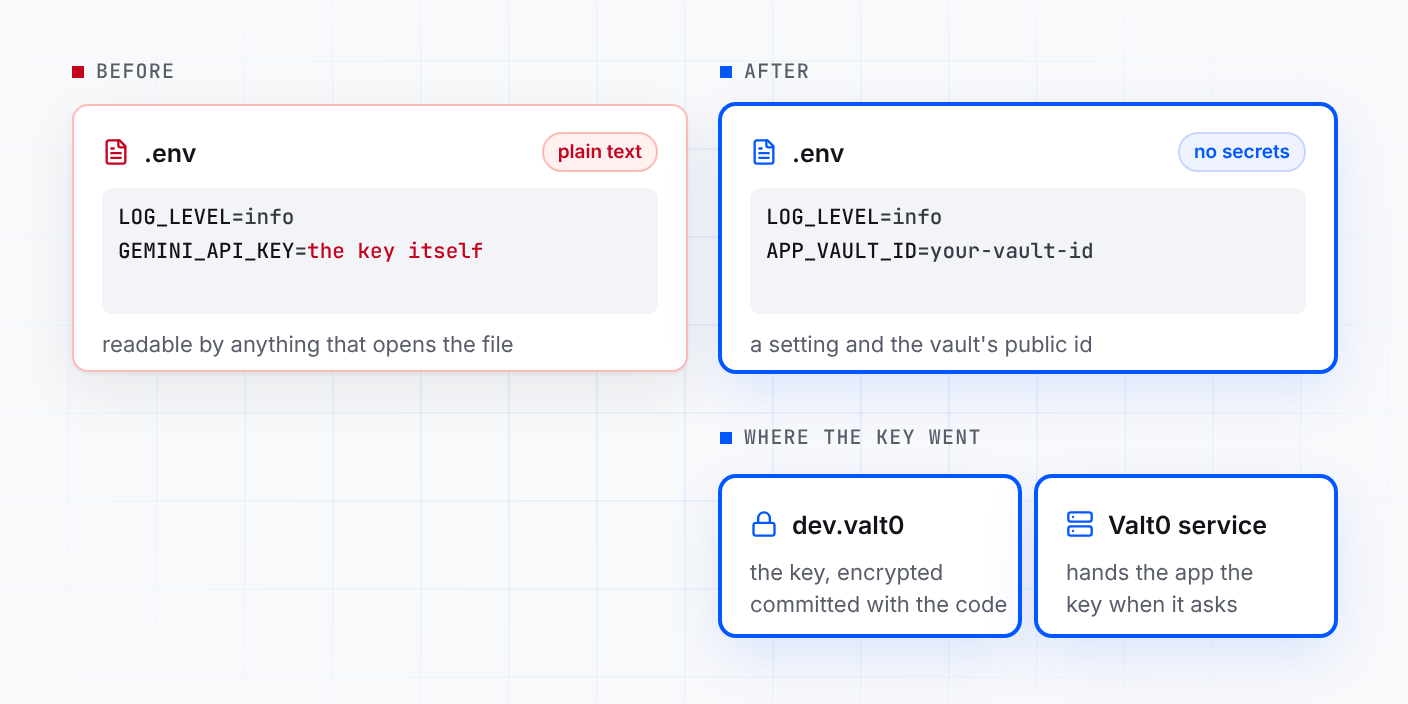
plain text in a file:
LOG_LEVEL=info
GEMINI_API_KEY=the-key-itself
Google's own advice is to treat the key like a password and never check it into git. A leaked key can use up your quota and run up charges. The file being plain text means anything that can read it can use the key: a backup, a copy sent to a teammate, a tool or coding agent working in the project folder. And a variable in your shell profile is handed to every program you start from that shell.
Keep the key in a vault
You need Valt0 installed; valt0 status checks
that its service is running. Create a vault for development. Valt0 prints its key once, so
put it in your password manager now: without it nobody can open the vault, you included.
valt0 init devStore the Gemini key under the same name. Valt0 asks for the vault key, then for the value: paste the Gemini key.
valt0 store dev:GEMINI_API_KEYThe app never sees the vault key. It opens the vault by its id, which is public, and asks the local Valt0 service for the secret by name. Print the id:
valt0 info dev
Put that id in .env where the key was. It is safe there:
LOG_LEVEL=info
APP_VAULT_ID=your-vault-id
Then take the export GEMINI_API_KEY line out of your shell profile, and open a
new terminal. Otherwise the key is still in plain text there, and still in the environment of
everything you run.
Python
Install the clients. Valt0's needs Python 3.9 or later, and the current
google-genai needs 3.10, so use 3.10 or later. python-dotenv keeps reading the
settings in .env:
python -m pip install valt0-client google-genai python-dotenv
Then pass the key to genai.Client yourself, from the vault:
import os

import valt0
from dotenv import load_dotenv
from google import genai

load_dotenv()

vault = valt0.open_vault(id=os.environ["APP_VAULT_ID"], name="app")

with vault.secret("GEMINI_API_KEY") as secret:
    client = genai.Client(api_key=secret.reveal())
reveal() hands the SDK the value, and the with block wipes
Valt0's copy when it ends. Anywhere else, the secret prints as [REDACTED]: in
print(), an f-string or a log line. If the service can't be reached,
open_vault raises an error and the app stops at startup.
Get your Python secrets out of .env walks through
the same steps for a database URL and more.
Node.js
npm install @valt0/client @google/genaiimport { GoogleGenAI } from '@google/genai';
import { openVault } from '@valt0/client';
const vault = await openVault({ id: process.env.APP_VAULT_ID, name: 'app' });
const geminiKey = await vault.secret('GEMINI_API_KEY');
export const ai = new GoogleGenAI({ apiKey: geminiKey.reveal() });
geminiKey.destroy();
destroy() wipes Valt0's copy straight after. The SDK keeps the string it
was given, because a JavaScript string can't be wiped, but the key is no longer in
process.env or in any file next to your code. The client needs Node.js 20 or
later, and so does the current @google/genai; its README says version 3.0.0 will
need Node.js 22.
From here
-
If the key may have leaked, follow Google's order: create a new key in AI
Studio, store it with
valt0 store dev:GEMINI_API_KEY --forceand restart the app, then disable the old key once the new one works. Check your billing and API usage for calls you didn't make. -
Teammates get
dev.valt0when they clone the repo and the vault key from you. They runvalt0 import devonce before the app can read it. - Keep it out of browser code. Google says a key in a web or mobile app can be pulled out of it. Call Gemini from your server and have the browser talk to that.
-
Production gets its own vault and its own Gemini key, with the same secret
name, so a leaked
devkey leaves it alone. Deployment covers servers.
Other secrets in the same .env go the same way:
Turn an .env file into a vault converts a whole file in one
step, and Get your Node.js secrets out of .env covers
a database and Stripe.
Sources: Google: Using Gemini API keys, google-genai for Python, @google/genai for JavaScript, Valt0 Python client docs, Valt0 Node.js client docs.